
This tutorial will show you how to manually and easily set up a VPN for devices running Windows 10 (including Microsoft Surface) using the L2TP/IPsec protocol.
You would need the credentials sent to you via email to authenticate. Please locate and keep it handy before starting this process.
1. Add a new VPN connection
To add a new VPN connection, select the internet access icon in your system tray.
If you are using a Wi-Fi connection, the icon will look like this:

If you are using an Ethernet connection, the icon will look like this:

From the menu that pops up, select Network & Internet settings.

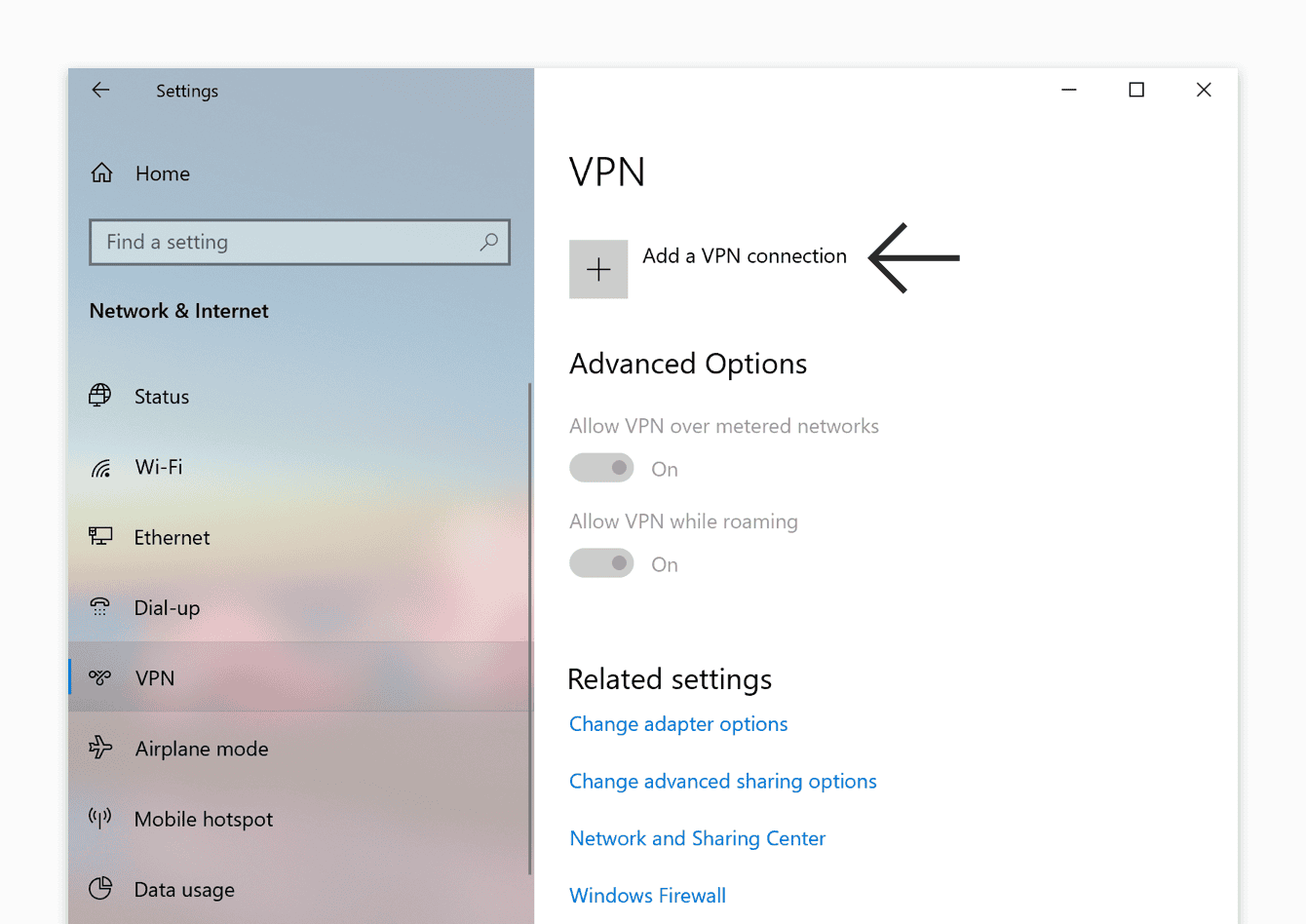
In the left sidebar, select VPN > Add a VPN connection.
In the Add a VPN Connection window, enter the following details:
- VPN provider: Select Windows (built-in).
- Connection name: Enter a name that will help you recognize your VPN connection. For example: TREJJ TUNNEL.
- Server name or address: Enter the server address shared to your email (usually tunnel.trejj.net).
- VPN type: Select L2TP/IPsec with pre-shared key.
- Pre-shared key: Enter trejj
- Type of sign-in info: Select User name and password.
- User name: Enter the username you received earlier (Which can also be found in your trejjcomms account. Note: This is different from your login username to members area)
- Password: Enter the password you received earlier (Which can also be found in your trejjcomms account. Note: This is different from your login password to members area)
Check the box for Remember my sign-in info.
Select Save.

Establish Connection
You will now see your new VPN connection in the Network & Internet settings panel.
To connect to the VPN server, select the name of the connection, then select Connect.

When your VPN connection is successful, you will see “Connected” below the name of the VPN connection.

You Can Now Verify If You're Successfully connected to your new location by visiting : https://whoer.net or similar services.
Disconnecting
To disconnect from a VPN server location, go to Network & Internet settings. In the left sidebar, select VPN. Select your VPN connection, then select Disconnect.

If you require further assistance, Please Contact Support
You May Like:
L2TP/PSK MANUAL CONFIGURATION PROCEDURE ANDROID DEVICE